Agent Specific Shift Profiles
When generating a roster in Monet, users have been historically limited to a single shift profile that all of the agents must share in order to generate a roster. With the Agent Specific Shift Profiles feature, this restriction no longer exists. Agents can now not only be assigned a profile specific to them on any day of the week, but can also be assigned to a specific shift for any given day of the week. This will not impact any previous functionality. If you choose to continue to create schedules and rosters the way you always have, then everything will continue operating as usual with no change to your current process. However, as long as the proper preparations are made, all users should be able to discontinue using the Scheduling module altogether, as the Agent Specific Shift Profile feature adds the “fixed shift” capability to the Auto-Assign routine. This document focuses on how the Agent Specific Shift Profiles and fixed shifts will work without the Schedule module.
Assigning Specific Profiles
For any day of the week, agents can now be assigned a specific, independent profile. Their shift must be selected from this profile. Although the list of profiles themselves may grow, the number of shifts in any given profile can be smaller. To have an agent only use a specific profile for a day, the administrator needs to use the drop-down in the Shift Profile row to select the appropriate profile for the corresponding day. This will restrict the shifts where the agent can be assigned to the shifts in that profile for the day (See Figure 1.0). Any days left with a selection of (none) will function the same as they always have. The agent will be assigned to shifts from the default profile that is selected immediately before generating a roster.
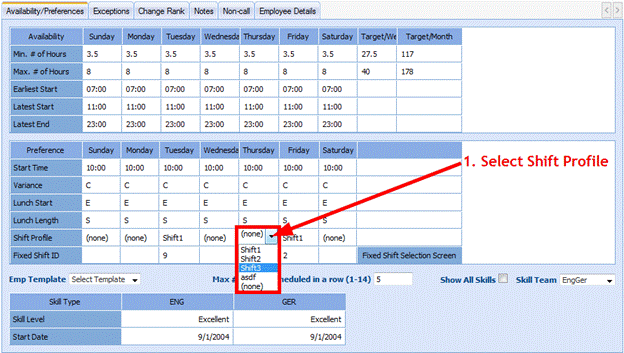
Figure 1.0
A situation where this can assist would be agents who are available to work shifts of the same lengths, but are restricted working some of those shifts with specific attributes. Assume you have two agents who both must start between 8:00 – 11:00. But one of them must have 10-minute breaks, and the other must have 15-minute breaks. Previously, the only way to deal with this would be to run the schedules with the agents assigned to fixed shifts before running the roster. Now, you’ll just need to create two different profiles: one with shifts starting between 8:00 – 11:00 that has 10-minute breaks; and another with shifts starting between 8:00 – 11:00 that has 15-minute breaks. As long as the agent has the correct shift profiles applied to them for the day that they need to be assigned, the only shifts that they can possibly get will be from that profile.
Assigning Fixed Shifts
The profile from which the agent has been assigned will be on the Shift Profile ID row; and the specific shift that the agent is assigned to for any given day will be referenced by the ID number of that shift in the Fixed Shift ID row. The fixed shifts are easier to assign in multiple places. The Shift Profile row cells are now drop-downs that contain a list of all the Shift Profiles for the active workgroup. The user can simply select the profile from which the shift will come from for a given day, and then type the ID of the shift in the Fixed Shift ID field below (See Figure 1.1). Once saved, that shift will always be assigned to the agent, as long as the daily and weekly targets for the agents match up correctly.

Figure 1.1
There may be an instance where the specific ID of a shift is not immediately known. Instead of going back to the Shift Profiles to locate the shift number, the administrator can click on the Fixed Shift Selection Screen button on the Fixed Shift ID row (See Figure 1.2).

Figure 1.2
Once you enter the Fixed Shift Selection Screen, you will be able to select any shift from any profile to be assigned on any day of the week. You can choose to display any profile in the workgroup with the drop-down at the top left. Once the profile of choice displays, you can then highlight the desired shift; and click the Select Shift button on any corresponding day to assign the agent the highlighted shift for that day. You can also clear any fixed shift regardless of the profile that is displayed by clicking Clear Shift (See Figure 1.3).

Figure 1.3
This screen also functions the same as the availability screen as the user can simply select the profile in the drop-down for any given day, and then type in the Shift ID. Once done making all the needed changes, Save the agent; and they will be assigned to those shifts when the roster is run.
Combining Open Availability with Fixed Shifts
You may choose to bypass the scheduling module to simplify your process, or to keep the empty shifts that are inherent to schedule generation from appearing in the roster. This has been made possible by the addition of the new fixed shift system that works with the Auto-Assign routine that is included in the new Agent Specific Shift Profiles feature. Setting up an agent that works all of their shifts fixed is easy; but what happens in the case that an agent has 3 days of the week that they have fixed shifts, and open availability for the other 4 days? In this case, you would use the Assign On feature to mandate that they work the fixed shifts on the 3 days in question. The Auto-Assign will see that the agent can only work the single shift that they are assigned as a fixed shift for those 3 days. But that also leaves open the possibility of the agent filling out 32 of their 40 hours working on the other 4 days that they are available, leaving two of those days un-assigned. If Assign-On tags are placed on the 3 days, then the Auto-Assign will have to assign them for those days, and then spread the rest of their hours out optimally throughout the other days. The Assign On tags can be placed on each agent on their individual Exception Calendar tab in their profiles (See Figure 1.4).
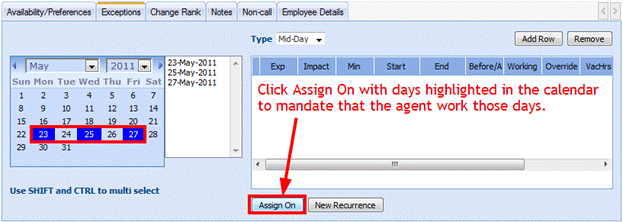
Figure 1.4
This feature also works with recurrences to compliment the general use of fixed shifts. This time you will click on New Recurrence instead of Assign On (See Figure 1.5).

Figure 1.5
When setting up a recurring Assign On tag for the same dates as the example above (but continuing on with no end), you will completely ignore all of the normal exception settings of the recurrence screen. You will solely focus on the recurrence pattern section of this screen. The recurrence shown below will recur every week on Monday, Wednesday, and Friday beginning on May 23rd, and going on with no end date. Setting an agent up to have a fixed shift, and placing the recurring Assign On tags will ensure that agents will always get the shifts of your choice on the days in question. This lets the agent get assigned in accordance with their standard availability for the rest of the days of the week on a continuing basis (See Figure 1.6).

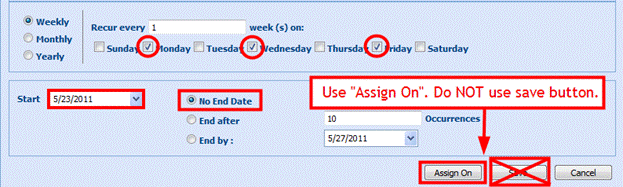
Figure 1.6
Once finished setting up the desired pattern, be sure to click the Assign Onbutton, and not the Save button. Selecting the Save button will create a recurring exception, and not an Assign Ontag.